Posts for: #Ubuntu

Docker – Matrix Synapse homeserver, federation, nginx reverse proxy and TURN server setup using docker-compose

Recently I set up a Matrix homeserver for my friend group. I considered whether I needed federation, and ultimately decided that I did. On top of that, I also had to set up a TURN server so that calls would work properly for everyone, since if someone is behind NAT, the connection typically doesn’t work reliably. I launched the container on a Hetzner cloud VPS running Debian 10.


You’ll need a running Docker service, if it’s not installed yet, you can easily install it using https://get.docker.com/. I recommend creating a git repository where you can push your docker-compose and nginx config files.


[Read more]

Disabling IPv6 on Ubuntu 19.04 when connecting to VPN

Disabling IPv6 on Ubuntu 19.04 when connecting to VPN

I recently noticed that when I connect to VPN from Pop_OS (based on Ubuntu 19.10), the communication continues on the regular adapter via IPv6 in addition to the VPN interface.

This is obviously not ideal, because if we’re using the VPN for privacy, this leaks our IP address and we can be traced back without any effort. The best solution would be to completely disable IPv6 address assignment at the kernel level (by editing GRUB), but I generally use it for other purposes, so I only want to disable it when I’m connected to the VPN.

[Read more]

Setting up Dynamic DNS with Cloudflare on Raspberry Pi 4 – ddclient

Setting up Dynamic DNS with Cloudflare on Raspberry Pi 4 – ddclient

Update 2024/06/25: Since writing this article, someone has written a script for this, which you can find here: https://github.com/K0p1-Git/cloudflare-ddns-updater . Thanks for the info to tesztszerverem.hu!


If you have a home server and want to access a service from the internet (e.g. OpenVPN), it’s worth setting up a dynamic DNS record. This article details the combined setup of Cloudflare – ddclient.

First, create an ‘A’ record with a dummy IP address (so we can later verify that the update was successful), and with a 5-minute TTL.

[Read more]

[LINUX] Cleaning up a full boot partition

[LINUX] Cleaning up a full boot partition

Rarely, but it can happen that the /boot partition fills up on Linux machines, in which case it’s worth deleting the old kernels, but this isn’t always straightforward.

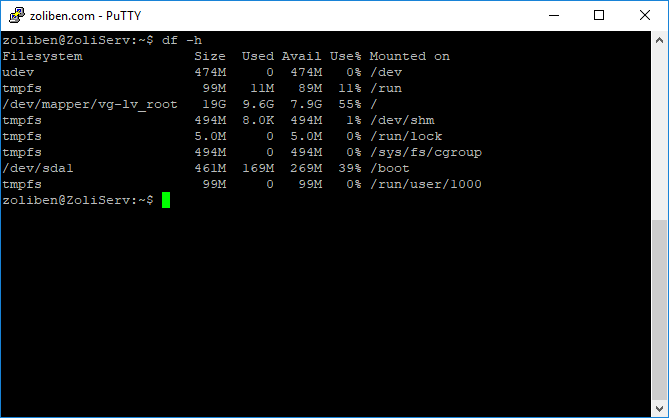
You can check the disk usage with the following command:

df -h

The image shows the state after cleaning, so the /boot partition is now only at 39% usage

In this case, apt-get upgrade gets interrupted during the kernel update, since there’s no more space on the partition. This constantly throws errors, and there are cases (like mine) where updates can’t run at all anymore because previous ones have failed.

[Read more]

Installing Squid Proxy on Ubuntu Server

Installing Squid Proxy on Ubuntu Server

First, let’s update the repositories:

apt-get update

Then install the proxy software and the associated password generator:

apt-get install squid apache2-utils

Once that’s done, let’s create an empty configuration file:

rm -rf /etc/squid/squid.conf
touch /etc/squid/squid.conf
chown proxy /etc/squid/squid.conf

Then create the password file:

touch /etc/squid/squid_passwd

Then grant permissions to the proxy:

chown proxy /etc/squid/squid_passwd

Start editing the configuration file:

nano /etc/squid/squid.conf

and add the following lines (for http_port, specify the port you want to connect to the proxy on):

[Read more]

Call of Duty: United Offensive Linux Server and Other Goodies

Call of Duty: United Offensive Linux Server and Other Goodies

I’ve been planning for a long time to write a guide about one of my favorite games, Call of Duty United Offensive. For me, this was the best game back in the day alongside MoHAA, because IT HAD TANKS!

We played the hell out of it on Kursk, Carentan, Fox, and the Bas maps.

I feel like because of all the fun I had, I owe it to the game to not let it disappear into obscurity, so below I’ll describe how to set up a Linux dedicated server, how to configure 1920x1080p resolution, which ports need to be opened, and maybe I’ll even have time to cover mods.

[Read more]

Installing qBittorrent on Ubuntu

Installing qBittorrent on Ubuntu

Many people have become disillusioned with utorrent in recent months, including myself. I looked into other torrent clients and found qBittorrent. It’s simply fantastic! Its web client works perfectly in mobile browsers, and the system itself is very stable.


It can be installed on Ubuntu as follows:

You need to add its repository to the cache:

add-apt-repository ppa:qbittorrent-team/qbittorrent-stable

Update the source list:

apt-get update

Depending on whether you want only the web client or also the desktop client, install accordingly:

[Read more]

Observium

Observium

I was having some issues with my VPS instances (they would sometimes go down), so I looked for a monitoring system that would alert me when a VPS goes offline and also save statistical data. I initially looked at NodeQuery, but the problem with it was that it only updated every 5 minutes, so if a VPS became unavailable for 1-2 minutes, it barely noticed. I checked out other options too, but eventually settled on Observium.

[Read more]

Installing Plex Media Server on Ubuntu Server

Installing Plex Media Server on Ubuntu Server

For the installation, we need the media server file matching our system from the Plex website, which can be found here.

Copying the package download link, download it to the VPS or server machine:

wget https://downloads.plex.tv/plex-media-server/0.9.15.3.1674-f46e7e6/plexmediaserver_0.9.15.3.1674-f46e7e6_amd64.deb

Then install the downloaded file:

dpkg --install plexmediaserver_0.9.15.3.1674-f46e7e6_amd64.deb

If it complains about missing dependencies, you can install them with the following command:

apt-get -f install

Then navigate to the /var/lib/plexmediaserver/Library/Application Support/Plex Media Server/ directory, and edit the Preferences.xml file using nano or vi, by adding the following line after the Preferences word in the file (replacing 1.2.3.4 with your own IP address):

[Read more]

Installing BTsync on Ubuntu Server

Installing BTsync on Ubuntu Server

Some of you probably know BTsync, it’s a very useful little program. Basically it’s used for transferring files over the BitTorrent protocol. Here’s how to install it:

To add sources to the apt repository, you need to install the necessary packages first, if you haven’t already:

apt-get install software-properties-common python-software-properties

Then add the source:

add-apt-repository ppa:tuxpoldo/btsync

Then run an update:

apt-get update

And install the program itself:

apt-get install btsync

You’ll also need a web server, both nginx and apache work fine.

[Read more]